Getting started
Your first 20 minutes
Make an account, pick a look, add a few treats, and put your shop online.
You need an email address and a rough idea of what you sell. Not photos, not
every price, not a logo. All of it is changeable later, including the parts that
feel permanent.
1. Make your account
On Start free, fill in your business name, your email and a password (at
least 8 characters), then Create account. That signs you in and takes you
straight to setup.
2. Tell us about your bakery
Three short screens, in this order.
- Your bakery — your name, what you bake, and where you're based. "What you
bake" is a sentence, not a category. Sourdough and too many cookies is a
fine answer. - Your look — your bakery's name, already set in three designs. Pick the
one that feels like you today. Switching later is one click, and it doesn't
touch your words or photos. - Your treats — add two or three things you sell, each with a price. Two is
enough to get online. You are not building the whole menu right now.
Then Finish setup. Your site is made right then, in the look you picked,
with your name and your treats already on it.
3. See your site
The next screen says your bakery has a website. Tap See your site and it
opens, ready to edit: tap any words to change them, then tap Done to go to
your dashboard. Nobody else can see it until you publish.
To change words and photos later, see
Change words and photos on your site.
4. Work the three steps on your home page
Home opens with Steps to go live: three steps with a button each. The
first is already ticked, because you added treats during setup.
- Add your treats — the rest of your menu, with a photo each where you have
one. Go to Menu in the sidebar any time to add more. - Connect payments — so your site can take cards. About three minutes, and
the money goes straight to your bank. Take card payments
walks through it. - Publish your site — this is the one that puts you online.
Each step ticks off as you finish it, and the whole list disappears once all
three are done.
Want to see the dashboard busy before your first real order? Under the steps,
Add samples fills it with a sample bakery's orders and customers, and takes
them out again in one click. See Fill your kitchen with a sample bakery.
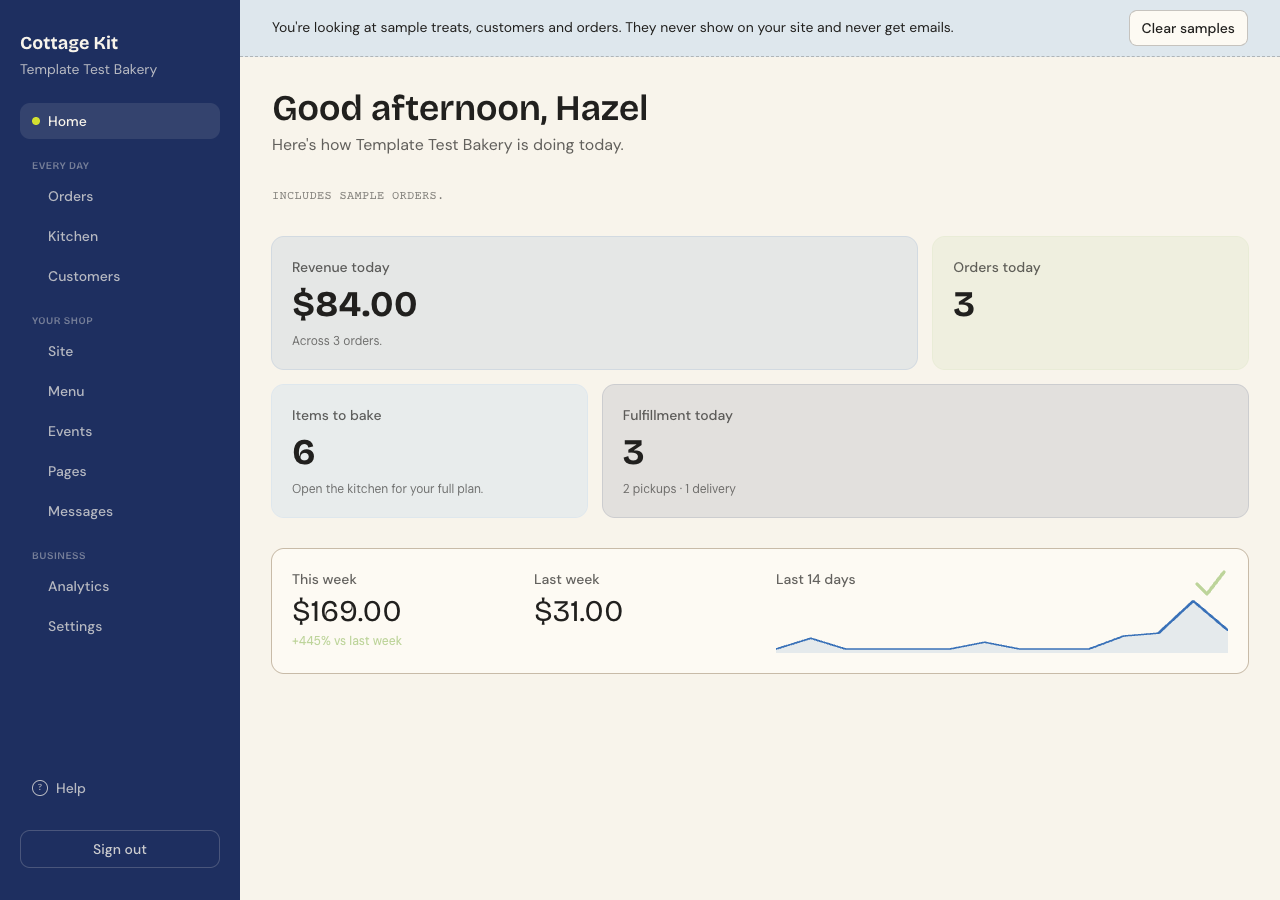
That’s home from then on — today’s money, today’s orders, and what’s due out of the oven.
What you'll see when it's worked
Site says You're live, with your address underneath it and a Copy
button. That link is your shop. Put it in your Instagram bio and you're
open — and nothing you do after this can take you offline by accident.
Not ready to show anyone? You don't have to publish today. Everything above
works the same unpublished, and nothing is charged before your free orders or
free days run out — see What Cottage Kit costs.
Still stuck?
Email support@cottagekit.app. Tell us what you were trying to do and what you saw instead.
Updated November 28, 2026